
Convert Logo to PCS Embroidery File for Clean and Smooth Stitching
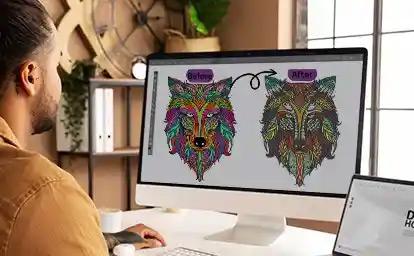
You have a beautiful logo ready to embroider. Your Pfaff machine is threaded and waiting. But when you load the file, an error message appears. The machine does not recognize it. This frustrating scenario plays out constantly for Pfaff owners. The problem is usually the same: the wrong file format. Pfaff machines speak a specific language. They need PCS files. Learning how to Convert Logo to PCS Embroidery File correctly ensures your machine reads every stitch command accurately, producing clean, smooth results every time.
The PCS format is a special digital format designed mainly for Pfaff and some older Husqvarna Viking embroidery machines . Unlike image files such as JPG or PNG that store only visual information, PCS files contain detailed stitch coordinates, color sequences, trims, and pathing instructions . Your machine reads these commands to recreate your design exactly as intended.
Let me walk you through everything you need to know about converting your logo to PCS format for flawless embroidery.
Understanding the PCS File Format
Before we dive into conversion methods, you need to understand what PCS files are and why they matter for your Pfaff machine.
What is a PCS file? The PCS embroidery file is a proprietary format associated with Pfaff sewing and embroidery machines . It is specifically designed to store embroidery design data that Pfaff machines can read and execute. The format contains instructions on stitches, thread colors, and all the design elements necessary for accurate recreation .
What does a PCS file contain? A properly formatted PCS file holds:
-
Stitch coordinates telling the needle exactly where to go
-
Color change information for multi-color designs
-
Trim commands to cut thread between elements
-
Pathing instructions for efficient machine movement
How PCS compares to other formats: When compared to other embroidery formats, PCS stands out for its compatibility with Pfaff systems . DST serves Tajima machines, PES works for Brother, and VP3 is used by modern Husqvarna machines. PCS is specifically optimized for Pfaff equipment, ensuring smoother performance without conversion issues .
Why Proper PCS Conversion Matters
Converting your logo to PCS format is not just a technical formality. It directly impacts the quality of your final embroidery.
Machine compatibility: Pfaff embroidery machines read only the PCS format . If your logo is in any other format, the machine will not recognize it. Converting ensures your machine reads every stitch correctly and runs smoothly without errors.
Stitch accuracy: When you convert properly, stitches form clean lines and even shapes . Each design element stays in the right place and maintains correct proportions. Poorly converted files often cause broken stitches, uneven outlines, or distorted designs that look unprofessional.
Brand consistency: Your logo represents your brand identity. Every color, line, and curve must match the original design. A high-quality PCS file keeps your brand colors accurate and preserves every detail .
Professional results: For uniforms, promotional items, or caps, a properly digitized PCS file is essential. It guarantees neat embroidery, smooth machine operation, and consistent results every time .
Method 1: Professional Digitizing Services (Most Reliable)
For clean, smooth stitching, professional digitizing services offer the best results. Companies like Absolute Digitizing, Digitizing Buddy, and others specialize in creating precise PCS files for Pfaff machines.
How it works:
-
You upload your logo in a common format (JPG, PNG, PDF, AI)
-
You specify that you need a PCS file for your Pfaff machine
-
You provide the desired size and fabric type
-
Professional digitizers manually create your file using advanced software like Wilcom Embroidery Studio E4
-
They optimize the design for your specific requirements
-
You receive your file, usually within 2 to 24 hours
Why professionals deliver better results: Expert digitizers understand stitch flow, underlay, density, and pull compensation for every fabric type . They carefully plan each stitch direction and sequence, ensuring your logo looks crisp, balanced, and professional on any material. They also test files in simulation mode to catch errors before delivery .
Prices start around $10-15 per design, making this affordable for hobbyists and businesses alike. Professional services also offer free unlimited edits until you are completely satisfied .
Method 2: Professional Digitizing Software (For DIY Control)
If you plan to digitize frequently and have time to learn, professional software gives you complete control over your PCS files.
Software options that support PCS:
-
Wilcom Embroidery Studio E4 – Industry standard with full PCS support
-
Hatch Embroidery – Powerful tools at a more accessible price point
-
SewArt – Budget-friendly entry option
-
Ink/Stitch – Free open-source option with Inkscape
The DIY workflow:
-
Import your logo into the software
-
Set your design to final dimensions
-
Digitize manually, assigning stitch types to each element
-
Add underlay appropriate for your fabric
-
Adjust density and pull compensation
-
Optimize stitch path and color sequence
-
Export as PCS
-
Test stitch and refine
Important caveat: These programs require experience and training . You must manually adjust stitches, trims, and density to make the file compatible with your machine. Without proper knowledge, you may still end up with errors or poor results.
Method 3: Free Online Converters (Proceed with Caution)
Countless websites offer free instant conversion to PCS format. They seem convenient, but they come with significant risks.
How they work: You upload your image, click convert, and download a file within minutes.
The problems:
-
They often distort stitch density and remove fine details
-
Color information frequently gets lost
-
They struggle with complex logos or gradients
-
The resulting files may not run correctly on your Pfaff machine
Why this matters: Poor conversions can turn a simple embroidery job into hours of frustration . You may end up with broken stitches, distorted logos, or wasted fabric. Fixing these errors costs more than hiring a professional from the start.
Note on technical limitations: Some conversion tools treat PCS as a "read-only" format, meaning they can convert PCS to other formats but not the reverse . This makes finding a reliable online converter for creating PCS files particularly challenging.
Common Problems with DIY and Free Conversions
Understanding what can go wrong helps you appreciate the value of professional work.
Low-quality stitching: Free converters often produce files with poor stitch quality. Outlines become jagged, small text loses sharpness, and the final result looks uneven or rough . This happens because the software cannot accurately map stitch directions and density.
Missing trims and thread changes: Many converted files skip important trims or thread changes . This causes overlapping stitches, color bleeding, and messy embroidery. Without proper sequencing, the design may not match your original logo.
Wrong scaling: A design may look perfect on your computer screen but distort once embroidered . Incorrect scaling changes proportions, making logos appear stretched, flattened, or blurry on fabric.
Poor underlay and density: When underlay or stitch density is wrong, the fabric puckers or wrinkles . This ruins the professional look of your embroidery and wastes valuable material.
Machine jamming: Badly converted PCS files can make your machine jam, skip stitches, or stop mid-run . These interruptions waste both time and thread.
Step-by-Step: How Professionals Convert Logos to PCS
Understanding the professional workflow helps you appreciate what goes into a quality PCS file.
Step 1: Artwork Receipt
The process starts when you send your logo in a common format such as JPG, PNG, PDF, or AI . The clearer the artwork, the more accurate the digitizing result will be. Vector files like AI or EPS are ideal when available.
Step 2: Professional Digitizing
Digitizers use advanced software like Wilcom Embroidery Studio E4 to convert the logo into an embroidery-ready format . This software allows complete control over every stitch detail.
Step 3: Manual Stitch Mapping
Experts recreate each part of the logo manually using appropriate stitch types :
-
Satin stitches for borders, text, and narrow columns
-
Fill stitches for large solid areas
-
Running stitches for fine lines and underlay
This manual approach ensures clean edges, proper direction, and smooth flow.
Step 4: Optimization
They adjust the design according to size, fabric type, and machine speed . This crucial step prevents thread breaks and uneven stitching during production.
Step 5: Export to PCS
Once the design is perfected, they export it to PCS format specifically for Pfaff machines .
Step 6: Quality Testing
The file undergoes testing in simulation mode to detect any flaws before delivery . This catches issues like gaps, uneven density, or misplaced stitches.
Step 7: Delivery and Revisions
Finally, the PCS file is sent to you. If any adjustments are needed, professional digitizers provide free edits to ensure complete satisfaction .
Choosing a PCS Conversion Partner
If you decide to use professional services, look for these qualities.
Experience with Pfaff machines: Ensure the provider specifically mentions PCS format and Pfaff compatibility. Absolute Digitizing, for example, has a team specializing in Pfaff PCS format .
Manual digitizing: Avoid services that rely on auto-digitizing. Manual creation produces superior results.
Free revisions: Look for unlimited free edits until you are satisfied. This protects your investment .
Fast turnaround: For rush orders, services offering 2-hour delivery can be invaluable .
Format flexibility: While you need PCS now, having a provider who can also supply DST, PES, or other formats future-proofs your designs .
Conclusion
Converting your logo to a PCS embroidery file for clean and smooth stitching requires understanding the format, choosing the right method, and prioritizing quality. PCS is the native language of Pfaff machines, containing all the stitch instructions needed for flawless embroidery.
Professional digitizing services offer the most reliable path. They combine expertise, precision, and quality control to deliver files that stitch perfectly. Companies like Absolute Digitizing create PCS files manually, optimize them for your specific needs, and stand behind their work with free revisions.
For those who prefer hands-on control, professional software exists but requires significant time investment to master. Free online converters are tempting but often produce poor results that lead to frustration and wasted materials.
Your Pfaff machine is capable of beautiful work. Feed it properly converted PCS files, and it will reward you with clean, smooth stitching that makes your brand shine, project after project.

 Arabic
 French