
Create a Vector File for DTG Printing for Commercial Printing Success
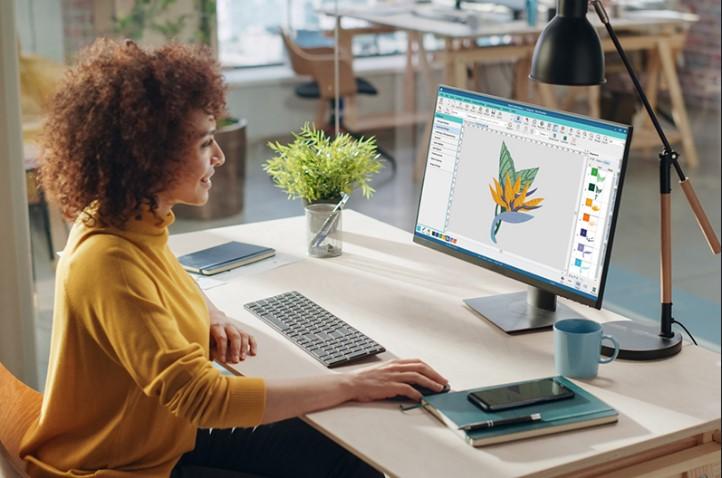
You run a commercial DTG printing business. Every day, you receive artwork from clients who expect perfect prints on their apparel. Some send tiny JPEGs pulled from websites. Others send photos with complex backgrounds. A few send files that actually work. The difference between smooth production and constant frustration often comes down to one thing: the quality of the source files. Learning to Create a Vector File for DTG Printing is the foundation of commercial printing success.
Direct to Garment printing is remarkable technology. It prints full-color designs directly onto fabric, creating soft, durable prints with incredible detail. But DTG printers are precision instruments. They need precision input. Vector files deliver exactly that.
Let me walk you through everything you need to know to create vector files that make your commercial DTG operation run smoothly.
Why Vectors Matter for Commercial DTG
In commercial printing, time is money. Every minute spent fixing bad files is a minute not printing. Vector files save time at every stage of production.
Consistency across orders. A vector file prints the same way every time. No variation. No surprises. When you have repeat orders, the vector ensures consistency.
Infinite scalability. One vector file works for toddler tees and 4XL hoodies. You scale to any size without redrawing or losing quality.
Clean edges every time. Vectors produce razor-sharp edges that raster images cannot match. Your prints look professional, which keeps clients coming back.
Smaller file sizes. Vector files are compact compared to high-res raster images. They transfer faster, load quicker, and take up less storage.
Easier editing. Need to change a color or modify a design? Vector files edit in minutes. Raster edits take much longer.
What Makes a Vector File "Commercial Ready"
Not all vector files are created equal. Commercial production demands specific qualities.
Clean paths. Every curve should have just enough anchor points to define the shape. Too many points create jaggy output. Too few lose detail.
Proper color mode. Work in RGB for DTG printing. CMYK is for offset printing. RGB gives you a wider color gamut and brighter prints.
Text converted to outlines. Never send fonts. Convert text to paths so your file looks the same on any computer.
Separated elements. Keep design elements on separate layers when possible. This makes editing and color adjustments easier.
Correct size. Set your artboard to the final print size. Scaling later can introduce errors.
Transparent background. For designs that need to blend with garment colors, ensure backgrounds are transparent.
Essential Tools for Commercial Vector Creation
Professional vector work requires professional tools. Here are the industry standards.
Adobe Illustrator (The Industry Standard)
Illustrator is the most widely used vector software in commercial printing. Its features are specifically designed for production work.
Key features for DTG:
-
Powerful color management
-
Advanced path editing
-
Artboard support for multiple sizes
-
Seamless integration with Photoshop
-
Industry-standard file formats
Cost: Around $20-30/month with Creative Cloud. For commercial use, the investment pays for itself quickly.
Affinity Designer (Powerful Alternative)
Affinity Designer offers professional vector tools with a one-time purchase price, making it attractive for growing businesses.
Key features:
-
One-time payment, no subscription
-
Fast performance even with complex files
-
Excellent compatibility with Illustrator files
-
Persona system for vector/raster switching
Cost: Around $50-70, no recurring fees.
CorelDRAW (Long-Time Industry Favorite)
CorelDRAW has deep roots in the apparel decoration industry. Many screen printers and embroiderers grew up on Corel.
Key features:
-
Strong text handling
-
Extensive file format support
-
Macro automation for repetitive tasks
-
Integrated photo editing
Cost: One-time purchase or subscription options.
Inkscape (Free Option)
For businesses on a tight budget, Inkscape provides professional vector capabilities at zero cost.
Key features:
-
Completely free and open-source
-
Runs on Windows, Mac, Linux
-
Active community and tutorials
-
Supports SVG, PDF, EPS, and more
Cost: Free. Great for startups, but be aware of the learning curve.
Step-by-Step: Creating Commercial-Ready Vector Files
Step 1: Start with Clean Source Material
The quality of your vector depends on the quality of your source. For client-provided artwork:
-
Request vector files (AI, EPS, SVG) whenever possible
-
If only raster is available, ask for the highest resolution (300 DPI minimum at final size)
-
For logos, request brand guidelines with color specifications
Step 2: Set Up Your Document
Open your vector software and create a new document:
-
Set artboard to final print size (or larger if you will offer multiple sizes)
-
Color mode: RGB
-
Raster effects: 300 PPI minimum
-
Units: Inches or millimeters based on your preference
Step 3: Import Reference Artwork
Place your source image as a reference layer. Lock it so you do not accidentally move it.
Step 4: Create Your Vectors
For simple shapes: Use the shape tools (rectangle, ellipse, polygon). These create mathematically perfect shapes instantly.
For custom shapes: Use the pen tool. This takes practice but gives complete control.
Pen tool tips for commercial work:
-
Place anchor points at curve extremes, not arbitrarily
-
Use fewer points for smoother curves
-
Practice tracing simple shapes before complex logos
-
Hold Alt to break direction handles for sharp corners
For text: Use the text tool. Choose fonts that will print clearly at your target size. Always convert text to outlines before finalizing.
Step 5: Apply Color
Use the color picker or enter specific values. For brand consistency, use the exact color codes from client guidelines.
Color tips:
-
Work in RGB
-
Use global swatches for easy updates
-
Name colors clearly (e.g., "Logo Red" not just "Red")
-
Avoid process colors that may shift between print runs
Step 6: Organize with Layers
Professional files use layers effectively:
-
Separate layers for different design elements
-
Name layers meaningfully
-
Group related elements
-
Lock completed layers to avoid accidents
Step 7: Clean Up Paths
Before finalizing, clean your paths:
-
Use simplify path tools to remove excess anchor points
-
Check for open paths (they should all be closed)
-
Verify that overlapping shapes are intentional
-
Zoom in to 400% and inspect edges
Step 8: Save Your Master File
Save in the software's native format (AI for Illustrator, etc.). This is your master. Keep it safe.
Step 9: Export for Production
For DTG printing, export a high-resolution PNG:
-
Format: PNG-24
-
Resolution: 300 DPI
-
Background: Transparent
-
Color mode: RGB
Step 10: Quality Check
Before sending to production:
-
Open the PNG and zoom to 100%
-
Check edges for jaggedness
-
Verify colors
-
Confirm transparency works
-
Test print one sample
Common Commercial Vector Mistakes
Mistake 1: Accepting low-resolution source files. If a client sends a tiny logo, push back. Explain that quality requires quality source material.
Mistake 2: Not converting text to outlines. The printer's computer may not have your font. Convert text to paths.
Mistake 3: Forgetting about transparency. White backgrounds in files cause white rectangles on dark garments.
Mistake 4: Using too many anchor points. Extra points create jaggy output and larger file sizes.
Mistake 5: Wrong color mode. CMYK files print duller than RGB on DTG printers.
Mistake 6: Not testing. Always test print one sample before running production.
Vector Checklist for Commercial DTG
Use this checklist before finalizing any file:
-
File created in vector software (AI, EPS, SVG, PDF)
-
All text converted to outlines
-
All paths closed
-
Colors in RGB mode
-
Artboard at final print size
-
Transparent background where needed
-
Layers organized and named
-
Master file saved in native format
-
High-res PNG exported at 300 DPI
-
PNG has transparent background
-
Test print completed and approved
Building Client Relationships Through Better Files
Educating clients about vector files builds trust and improves your workflow.
When a client sends a low-res JPEG: Kindly explain why vectors matter. Offer to accept the file but note that quality may suffer. Better yet, offer vector conversion services for a small fee.
When a client provides vectors: Thank them and explain how this helps ensure quality. They will appreciate knowing they contributed to the process.
For regular clients: Keep their vector files organized. When they reorder, you have the source ready.
When to Outsource Vector Conversion
Even successful print shops sometimes outsource vector work. Complex illustrations, detailed logos, or rush jobs may benefit from professional vector services.
Vector conversion services take raster images and create clean, production-ready vector files. Prices start around $5-20 depending on complexity.
Consider outsourcing when:
-
The source image is very low quality
-
The design has intricate details
-
You are swamped with production work
-
A rush order requires perfect files fast
Conclusion
Creating vector files for commercial DTG printing success requires understanding what makes a file production-ready. Clean paths, proper color mode, outlined text, organized layers, and high-resolution exports are non-negotiable for professional results.
Invest in professional tools like Adobe Illustrator or Affinity Designer. Learn the pen tool. Master path cleaning. Build systems for organizing and storing files. Test everything before production.
When you consistently deliver perfect vector files, your DTG operation runs smoothly. Prints look sharp. Clients stay happy. Production stays profitable.
Your commercial printing business deserves files that work as hard as you do. Perfect vectors make that happen.

 Arabic
 French